
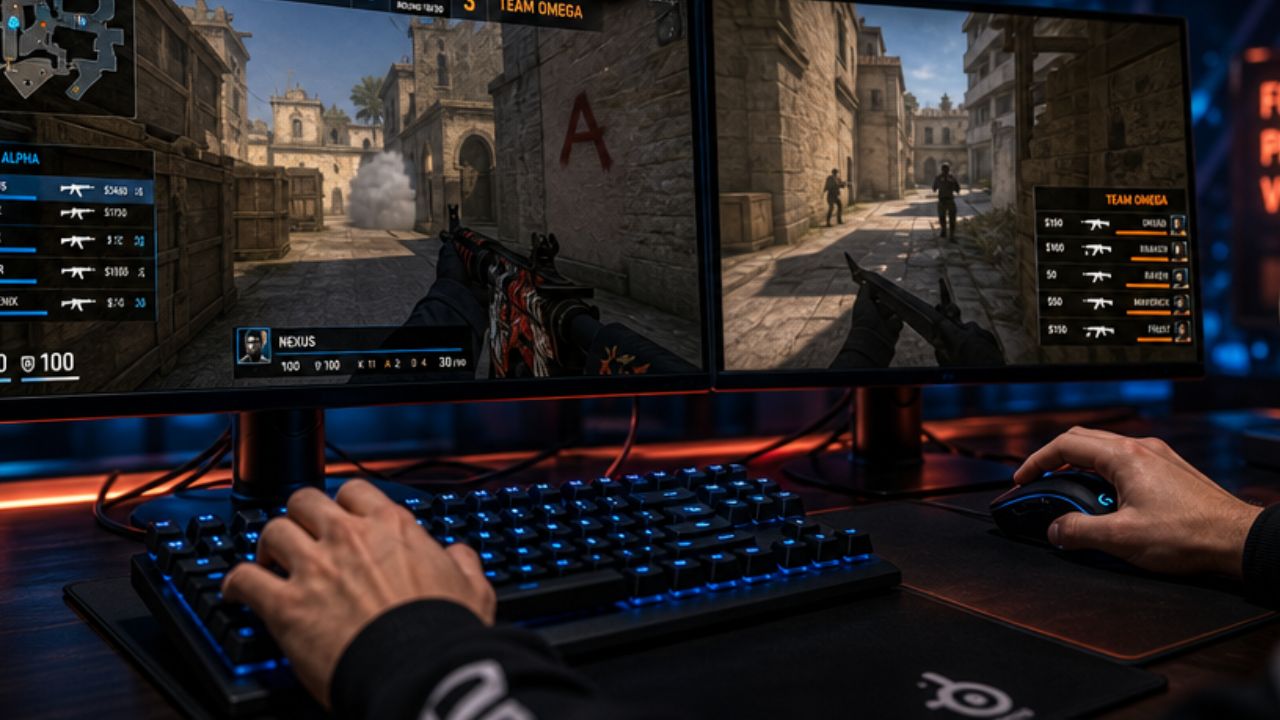
Finding the best CS2 settings for pro players in 2026 can make a huge difference in your gameplay performance, reaction time, and overall competitive experience. As Counter-Strike 2 continues to evolve with updates, improved graphics, and a more advanced Source 2 engine, professional players constantly fine-tune their settings to gain every possible advantage. From optimized video settings and crosshair configurations to sensitivity, resolution, and audio adjustments, the right setup can help improve visibility, accuracy, and smoother gameplay during intense matches.
In this guide, we will break down the best CS2 settings used by pro players in 2026, including graphics options, mouse sensitivity, viewmodel preferences, and FPS optimization tips. Whether you are a beginner looking to improve or a competitive player aiming to rank higher, these professional settings can help you achieve better consistency and elevate your performance in every match.
Which Video Settings Give Competitive Players the Best Performance?
Low settings across the board deliver the highest and most stable frame rates in CS2. For competitive play, visual quality is secondary to frame consistency and enemy visibility.
Here are the recommended video settings used by the majority of professional CS2 players in 2026:
| Setting | Pro Recommendation |
|---|---|
| Resolution | 1280×960 (stretched) or 1920×1080 |
| Display Mode | Fullscreen |
| Refresh Rate | 360Hz (or max available) |
| Global Shadow Quality | Low or Very Low |
| Model / Texture Detail | Low |
| Shader Detail | Low |
| Particle Detail | Low |
| Ambient Occlusion | Disabled |
| High Dynamic Range | Performance |
| FidelityFX Super Resolution | Disabled |
| Boost Player Contrast | Enabled |
| Multisampling Anti-Aliasing | None or 2x MSAA |
| Texture Filtering Mode | Bilinear |
| V-Sync | Disabled |
Why these choices matter: Disabling shadows and ambient occlusion removes visual clutter that can hide enemy movement. “Boost Player Contrast” is one setting pros actively turn on because it makes enemy models stand out against backgrounds. V-Sync adds input delay and should always be off in competitive play.
Common mistake: Leaving texture filtering on Anisotropic 16x because it “looks better.” This adds GPU load with zero competitive benefit.
What Graphics Card and Resolution Do Professional CS2 Players Use?
Most professional CS2 players in 2026 use NVIDIA RTX 3080-class GPUs or higher, paired with 1280×960 stretched or 1920×1080 native resolution. The GPU choice is driven by the ability to sustain 300–500+ FPS at low settings, not by ray tracing or visual features.
Common GPU setups among pros (estimated based on team hardware partnerships and public configs as of 2026):
- NVIDIA RTX 4090 / RTX 4080 (top-tier tournament setups)
- NVIDIA RTX 3080 / RTX 3070 (widely used mid-range pro option)
- AMD RX 7900 XTX (used by some AMD-sponsored players)
Resolution breakdown:
- 1280×960 stretched — Widens player models slightly, preferred by players who came from CS:GO habits.
- 1920×1080 native — More screen real estate, cleaner image, increasingly common among newer pros.
- 1024×768 stretched — Still used by some veteran players, though less common in 2026.
Choose 1280×960 if you’re transitioning from CS:GO and want familiar model sizing. Choose 1920×1080 if you’re starting fresh and want the clearest image with the best peripheral awareness.
If you’re weighing PC gaming versus console for competitive shooters, our PlayStation vs Xbox vs PC comparison breaks down why PC remains the dominant platform for CS2.
Are There Specific Monitor Refresh Rates Pros Recommend?
360Hz is the current professional standard in CS2 for 2026. The jump from 240Hz to 360Hz provides a measurable reduction in motion blur and ghosting, which matters at the reaction speeds pros operate at.
Refresh rate hierarchy for CS2:
- 360Hz — Pro standard; recommended if budget allows.
- 240Hz — Excellent for high-level play; the difference from 360Hz is noticeable but not dramatic.
- 144Hz — Acceptable for casual competitive play; a significant upgrade from 60Hz.
- 60Hz — Not recommended for any level of competitive CS2.
Panel type also matters. Most pros use TN or IPS panels for their low response times (1ms GtG). OLED monitors are entering the pro scene in 2026 due to near-zero pixel response, though burn-in concerns remain a consideration for long gaming sessions.
How Do Pros Configure Their Launch Options for Maximum FPS?
Launch options are command-line arguments that run when CS2 starts, bypassing some default settings and pushing performance. The most commonly used pro launch options in 2026 are:
-novid -tickrate 128 -high +fps_max 0 -nojoy
What each flag does:
-novid— Skips the intro video, saves a few seconds on startup.-tickrate 128— Sets offline server tick rate to 128 (official servers handle this server-side).-high— Sets CS2 process priority to High in Windows, giving it more CPU resources.+fps_max 0— Removes the FPS cap entirely.-nojoy— Disables joystick support, freeing up minor system resources.
How to apply launch options in Steam:
- Open Steam and go to your Library.
- Right-click Counter-Strike 2 and select Properties.
- In the General tab, find the Launch Options field.
- Paste your desired commands and close the window.
Edge case: -high can sometimes cause stuttering on systems where other background processes compete for CPU priority. If you notice frame drops after adding it, remove it and test again.
What Are the Most Optimal Mouse Sensitivity Settings for CS2 Pros?
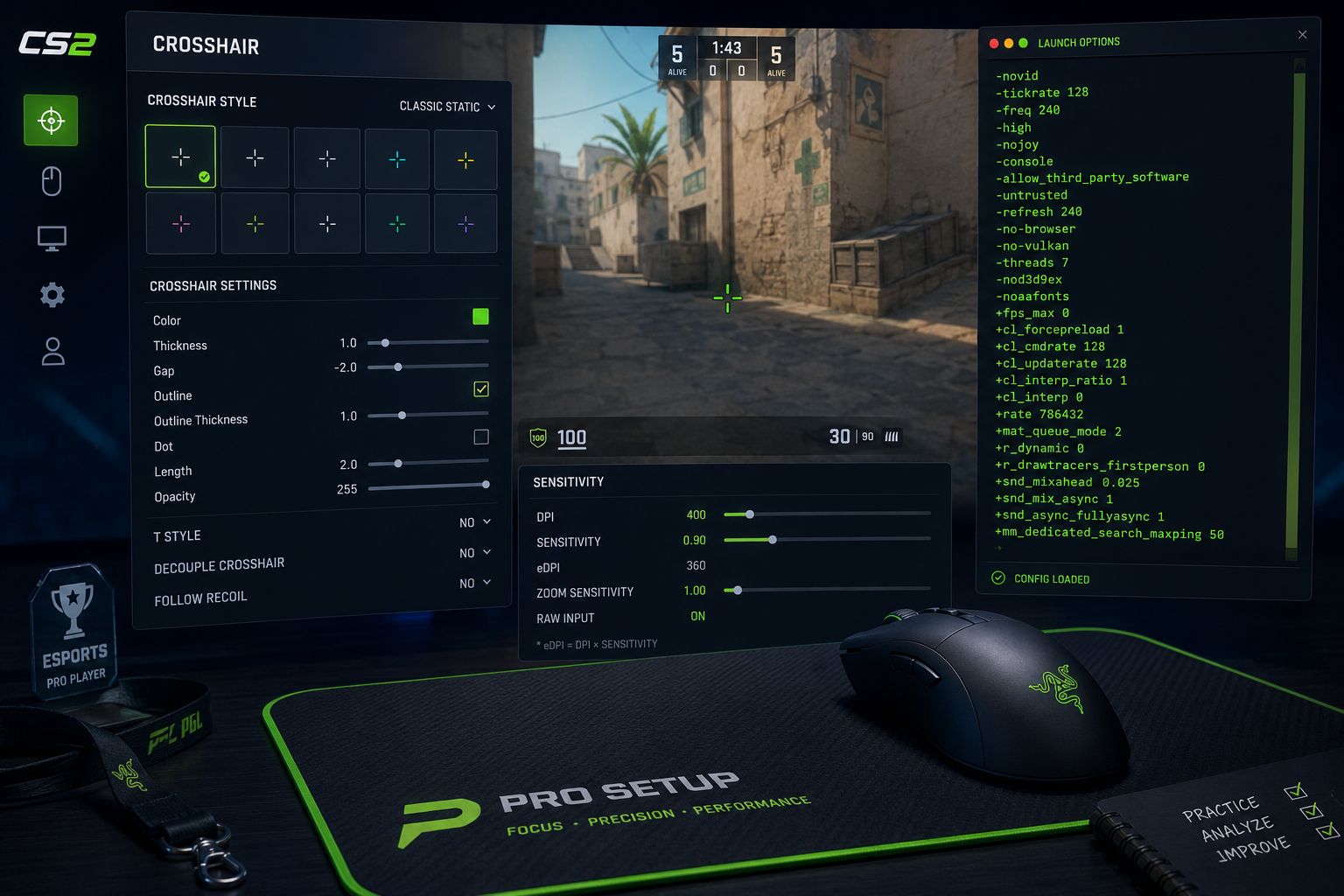
The optimal mouse sensitivity for CS2 pros in 2026 is 400–800 DPI combined with an in-game sensitivity between 0.8 and 2.0, producing an effective DPI (eDPI) typically between 500 and 1200. Lower eDPI values give more precise aim control at the cost of requiring larger arm movements.
eDPI formula: DPI × In-game Sensitivity = eDPI
Example pro eDPI values (based on publicly available configs):
- s1mple (retired/streamer): 400 DPI × 3.09 = ~1236 eDPI (historically higher than most)
- NiKo: 400 DPI × 1.19 = ~476 eDPI
- ZywOo: 400 DPI × 2.0 = ~800 eDPI
Key mouse settings to configure:
- Raw Input: On — bypasses Windows mouse acceleration for direct hardware input.
- Mouse Acceleration: Off — acceleration changes how far your crosshair moves based on speed, making aim inconsistent.
- Windows Pointer Speed: Set to 6/11 (the default, no acceleration added by the OS).
Choose lower eDPI if you play on a large mousepad and prefer precise, controlled flicks. Choose higher eDPI if you play on a smaller desk or prefer wrist-based aiming.
How Do Top Players Configure Their Crosshair in Counter-Strike 2?
Most top CS2 players use a small, static crosshair — typically a classic or small style with no dynamic movement (no spread animation). A static crosshair gives accurate visual feedback about where your shots land without the distraction of the crosshair expanding during movement.
Common pro crosshair characteristics:
- Style: Classic Static or Classic (Style 4 or 5 in CS2)
- Size: 1–3 (small)
- Thickness: 0.5–1
- Gap: -2 to 1 (tight center gap)
- Color: Green, cyan, or white for maximum visibility
- Outline: On (0.5–1 thickness) to help it show against bright backgrounds
- Dynamic: Off
How to import a crosshair: CS2 supports crosshair share codes. You can paste a code directly in the crosshair settings menu. Most pro configs are available on HLTV.org or prosettings.net.
Common mistake: Using a large crosshair because it’s “easier to see.” Large crosshairs obscure the exact point of aim and make precise headshots harder to line up.
What Settings Do Pros Use to Reduce Input Lag?
Reducing input lag in CS2 requires changes at the hardware, OS, and in-game level. The biggest gains come from disabling V-Sync, running the game in fullscreen (not borderless window), and using a high-refresh-rate monitor.
Input lag reduction checklist:
- V-Sync: Disabled in-game and in GPU driver settings
- Display Mode: Exclusive Fullscreen (not Borderless Window)
- NVIDIA Reflex: Enabled (or Enabled + Boost) — reduces render queue latency
- Raw Input: Enabled in CS2 mouse settings
- Mouse polling rate: 1000Hz or 8000Hz (if supported)
- Windows Game Mode: On
- Background applications: Close unnecessary programs before playing
- Power plan: Set to High Performance in Windows
NVIDIA Reflex is worth calling out specifically. It reduces the latency between mouse movement and what appears on screen by syncing the CPU and GPU render pipeline. Most pros with NVIDIA cards have this enabled in 2026.
What Keyboard and Mouse Do Most Esports CS2 Players Actually Use?
Most professional CS2 players in 2026 use a lightweight optical gaming mouse (under 80g) and a tenkeyless or 60% mechanical keyboard with linear switches. The specific brand matters less than the sensor quality and weight.
Popular mice among CS2 pros:
- Logitech G Pro X Superlight 2 (widely used, ~60g)
- Razer DeathAdder V3 Pro
- Zowie EC series (wired, popular for its reliable sensor)
- Pulsar X2 Mini
Popular keyboards:
- Logitech G Pro X TKL
- Ducky One 3 TKL
- SteelSeries Apex Pro TKL
Switch preference: Linear switches (Cherry MX Red, Gateron Yellow) are most common for their smooth, fast actuation without tactile bump resistance.
Mouse surface: Large, low-friction cloth mousepads (400mm x 450mm or larger) are standard. Control-surface pads are less common at the pro level.
Do CS2 Pro Settings Work the Same for Different Roles?
Role-specific adjustments exist but are subtle. AWPers (snipers) tend to use slightly lower sensitivity for precise scoped shots, while entry fraggers sometimes run slightly higher sensitivity for faster 180-degree turns and aggressive peeking.
Role-based sensitivity tendencies:
| Role | Typical eDPI Range | Reasoning |
|---|---|---|
| AWPer | 500–900 | Precision scoped shots need controlled movement |
| Entry Fragger | 700–1300 | Fast flicks and wide angle checks benefit from higher sens |
| Support / Lurker | 600–1100 | Balanced for both spray control and repositioning |
These are tendencies, not rules. NiKo has played entry fragger roles with a very low eDPI (~476), proving that individual feel overrides role generalizations. The best approach is to find a sensitivity that feels natural, then stick with it for at least several weeks before adjusting.
How Do I Copy Exactly What NiKo or s1mple Use in Their Config?
Pro configs are publicly available and can be applied directly to CS2 through the game’s config file system. The most reliable sources for current pro settings are HLTV.org and prosettings.net, which update player configs regularly.
Steps to apply a pro config:
- Find the player’s config on HLTV.org (player profile → Settings tab) or prosettings.net.
- Note their DPI, in-game sensitivity, crosshair code, and video settings.
- Set your mouse DPI in your mouse software (Logitech G HUB, Razer Synapse, etc.).
- Launch CS2 and apply in-game sensitivity in Settings → Mouse.
- Paste the crosshair share code in Settings → Game → Crosshair → Import.
- Apply video settings manually in Settings → Video.
- Add launch options via Steam (right-click CS2 → Properties → Launch Options).
Important caveat: A pro’s config is built around their years of muscle memory. Switching to s1mple’s sensitivity cold will feel wrong at first. Use the config as a starting point, then adjust sensitivity ±10% until it feels natural over two to three weeks of play.
For players who want to sharpen skills across multiple game types, exploring competitive Roblox shooter games can also help build general aim mechanics in a lower-stakes environment.
What Are Common Mistakes Amateur Players Make With Their CS2 Settings?
The most common mistake is prioritizing visual quality over performance. Running High or Ultra graphics settings in CS2 cuts frame rates dramatically and adds input latency without providing any competitive advantage.
Top mistakes and how to fix them:
- V-Sync enabled — Adds 1–3 frames of input lag. Turn it off immediately.
- Mouse acceleration on — Makes aim inconsistent. Disable in Windows and in-game.
- Low refresh rate monitor — 60Hz creates a hard ceiling on reaction time. Upgrade to at least 144Hz.
- High in-game sensitivity — New players often use high sensitivity thinking it helps. It usually hurts precision. Drop eDPI below 1200 and practice.
- Dynamic crosshair — The expanding crosshair during movement is misleading. Switch to static.
- Borderless Window mode — Adds a small but real input lag compared to Exclusive Fullscreen.
- No FPS cap removed — Leaving the default FPS cap in place limits frames. Add
+fps_max 0to launch options. - Ignoring audio settings — CS2’s 3D audio is a competitive tool. Use stereo headphones with HRTF enabled to hear footsteps directionally.
If you’re still building your overall gaming setup and want to understand platform trade-offs before investing in hardware, the PlayStation vs Xbox vs PC guide is a useful reference point.
How Much Does Hardware Actually Impact Pro CS2 Performance?
Hardware has a significant but not unlimited impact on CS2 performance. The biggest gains come from monitor refresh rate and mouse quality — not GPU power alone. A player on a 360Hz monitor with a precise optical mouse will react and track faster than the same player on a 60Hz setup, all else equal.
Hardware impact ranked by competitive importance:
- Monitor refresh rate — High impact. 360Hz vs 60Hz is a measurable reaction advantage.
- Mouse sensor and weight — High impact. Precise optical sensors and lightweight mice reduce tracking errors.
- GPU (for FPS) — Medium-high impact. Enough GPU to sustain 300+ FPS matters; beyond that, returns diminish.
- CPU — Medium impact. CS2 is CPU-dependent for frame generation; a modern 6-core or better is sufficient.
- RAM — Low-medium impact. 16GB DDR4/DDR5 is sufficient; more doesn’t help meaningfully.
- Keyboard — Low impact. Switch type affects feel, not game outcomes directly.
The honest ceiling: Even perfect hardware won’t compensate for poor game sense, positioning, or aim fundamentals. Hardware removes friction — it doesn’t create skill. As discussed in our look at how indie games are competing with AAA titles in 2026, the tools available to players keep improving, but execution remains the deciding factor.
Final Thoughts: Putting the Best CS2 Settings for Pro Players in 2026 Into Practice
Choosing the best CS2 settings for pro players in 2026 is all about maximizing performance, improving visibility, and creating a setup that feels comfortable for your playstyle. While professional players often use lower graphics settings for higher FPS and better responsiveness, the ideal configuration ultimately depends on your hardware and personal preferences. Testing different crosshairs, sensitivities, resolutions, and audio settings can help you discover the perfect balance for competitive gameplay.
As Valve continues to update Counter-Strike 2 throughout 2026, staying updated with the latest pro player settings and optimization techniques can give you a valuable edge. By applying the tips and configurations shared in this guide, you can improve your reaction speed, aiming precision, and overall in-game performance to compete at a higher level.
Frequently Asked Questions (FAQs)
What is the best sensitivity for CS2 in 2026?
There’s no single best sensitivity, but most pros land between 500 and 1000 eDPI (DPI × in-game sensitivity). Start at 800 eDPI and adjust from there based on comfort over several weeks.
Should I use 1280×960 or 1920×1080 in CS2?
Both are valid. 1280×960 stretched makes player models slightly wider and is popular with CS:GO veterans. 1920×1080 gives better peripheral vision and a sharper image. Try both for a week each and stick with whichever feels more natural.
What FPS should I aim for in CS2?
Target at least 300 FPS to fully use a 240Hz monitor, and 360+ FPS for a 360Hz display. Frame rate should always exceed your monitor’s refresh rate for the smoothest experience.
Is NVIDIA Reflex worth enabling in CS2?
Yes. NVIDIA Reflex measurably reduces system latency by syncing the CPU and GPU render pipeline. Enable it in CS2 video settings if you have a compatible NVIDIA GPU.
What DPI do most CS2 pros use?
400 DPI and 800 DPI are the two most common choices. 400 DPI is slightly more popular among top players, but 800 DPI with a lower in-game sensitivity achieves the same eDPI result.
Can I use a pro’s config file directly?
Yes. CS2 config files can be downloaded and placed in the game’s cfg folder. However, adjust sensitivity to match your eDPI preference — don’t just copy numbers without understanding what they do.