
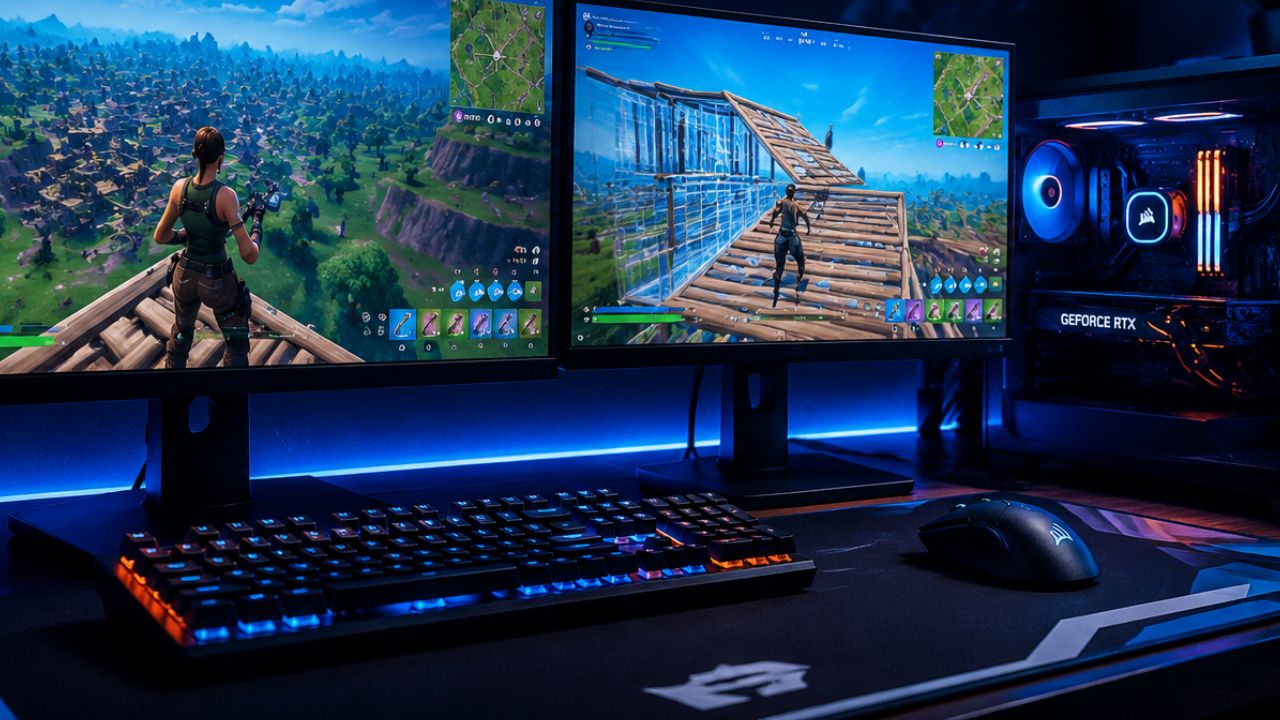
Fortnite remains one of the most competitive battle royale games in 2026, where even the smallest advantage can make the difference between securing a Victory Royale and an early elimination. While skill, game sense, and building mechanics are essential, optimizing your settings can dramatically improve your reaction time, aim accuracy, frame rates, and overall performance.
Professional players spend countless hours fine-tuning their graphics, sensitivity, keybinds, and audio settings to gain every possible edge in high-stakes tournaments and ranked matches. Whether you’re a seasoned competitor aiming for Unreal rank or a casual player looking to improve your consistency, using the right settings can help you build faster, edit more efficiently, and spot opponents before they spot you.
In this guide, we’ll break down the best Fortnite settings for competitive play in 2026, including graphics options, controller and mouse sensitivities, keybind recommendations, audio tweaks, and performance optimizations used by top players. Get ready to maximize your gameplay and give yourself the competitive advantage needed to dominate the island.
What Are the Best Fortnite Competitive Settings for 2026
The best Fortnite settings for competitive play in 2026 focus on three pillars: frame rate stability, input responsiveness, and fast mechanical execution. Every setting choice should serve at least one of those pillars.
Below is a reference table for the most impactful in-game settings:
| Setting | Recommended Value | Why It Matters |
|---|---|---|
| Rendering Mode | Performance (DX11/DX12) | Highest FPS output |
| 3D Resolution | 100% | Below 100% blurs enemies |
| View Distance | Near or Medium | Reduces GPU load |
| Shadows | Off | Major FPS gain, no competitive loss |
| Anti-Aliasing | Off or FXAA | Off = more FPS; FXAA if edges are distracting |
| Textures | Low | Minimal visual impact, large FPS gain |
| Effects | Low | Reduces visual noise in fights |
| Post Processing | Low | Removes bloom that obscures targets |
| VSync | Off | Adds input lag |
| Motion Blur | Off | Blurs fast movements |
| Show FPS | On | Lets you monitor performance drops |
The single biggest mistake competitive players make is leaving shadows and post-processing on because they look good in casual play. Turning both off can add 30–60 FPS on mid-range hardware, based on community benchmarks published by content creators like Tfue and Bugha in their setup breakdowns.
How Do Pro Fortnite Players Configure Their Settings
Pro Fortnite players configure their settings to eliminate every possible source of input delay and visual confusion. Most top players in FNCS (Fortnite Champion Series) events use near-identical graphics profiles, even when their hardware differs significantly.
Key patterns from publicly shared pro configs in 2026:
- Performance Mode is the near-universal choice on PC, bypassing Unreal Engine’s heavier rendering pipeline
- 3D Resolution stays at 100% because dropping it below that blurs player models and builds, making edits harder to read
- Brightness is set between 100–130% to make enemies visible in dark areas without washing out the image
- Controller deadzone is set as low as the hardware allows without stick drift (typically 5–10%)
Pro players also share their settings publicly through their Twitch streams and official Epic partner pages. Checking those sources directly gives the most accurate and up-to-date data. For a broader look at how top players across competitive shooters approach their configs, the Best CS2 Settings for Pro Players guide shows similar optimization principles at work.
Best Fortnite Sensitivity and Keybinds for Competitive Play
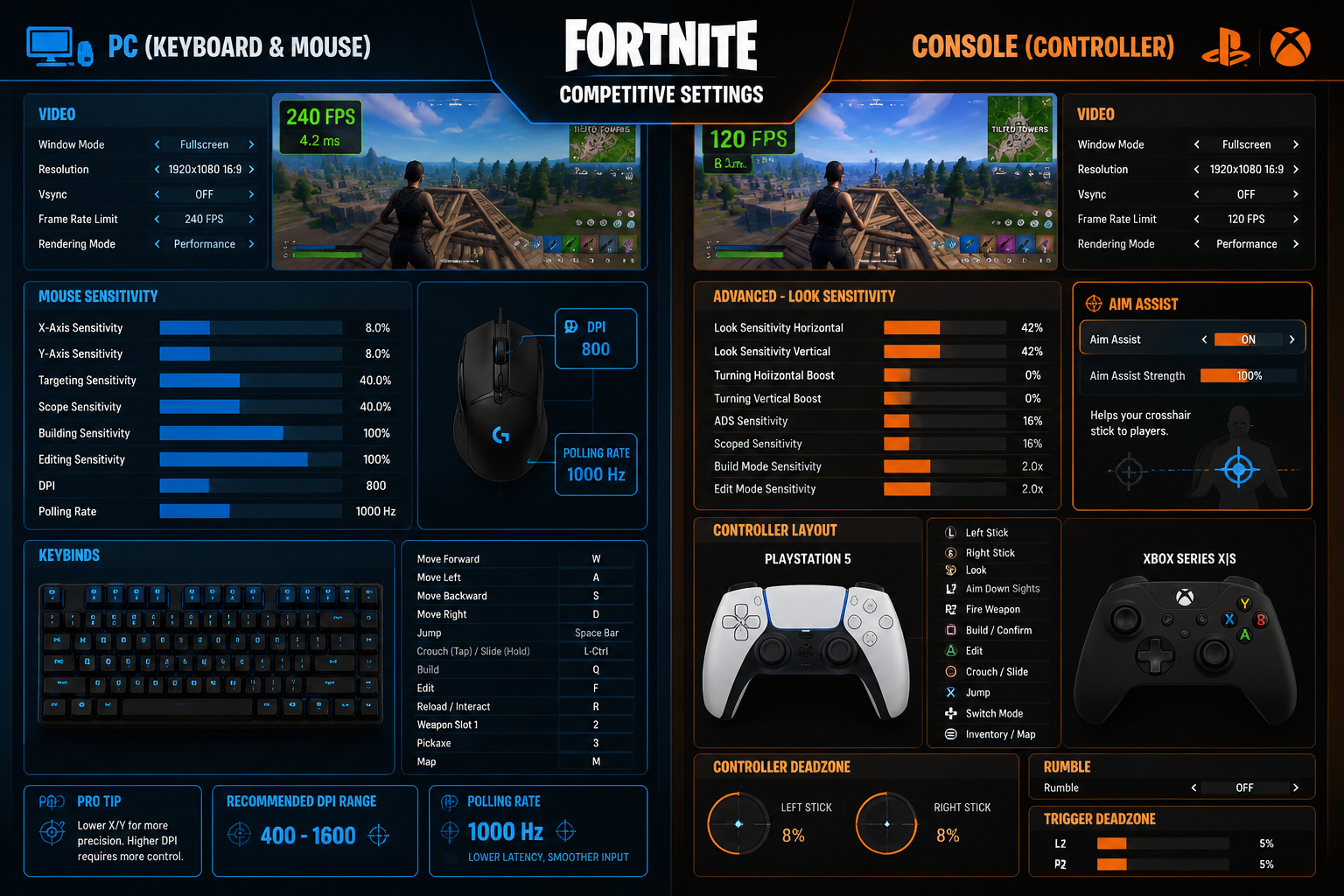
Sensitivity and keybinds are the most personal part of any competitive setup, but there are clear ranges that work for most players. For mouse sensitivity, most competitive PC players use an effective eDPI (mouse DPI multiplied by in-game sensitivity) between 40 and 80. A lower eDPI improves aim precision; a higher eDPI speeds up building rotations.
Recommended PC sensitivity range:
- X-Axis Sensitivity: 6–9%
- Y-Axis Sensitivity: 6–9%
- Targeting Sensitivity: 65–75%
- Scope Sensitivity: 60–70%
Recommended keybind layout (PC):
| Action | Common Keybind |
|---|---|
| Wall | Q or Mouse Button 4 |
| Floor | Mouse Button 5 or C |
| Stairs | E or V |
| Roof | T or Z |
| Edit | F or G |
| Crouch | Left Ctrl |
| Inventory | Tab |
| Reload/Interact | R |
The core rule for keybinds: build pieces and edit should be reachable without moving your left hand away from WASD. Players who bind walls to “4” or “5” on the number row are adding a fraction of a second to every build sequence, which compounds badly in high-speed fights.
What Graphics Settings Should You Use for Fortnite Competitive Play
For competitive Fortnite, the correct graphics approach is to strip the visual settings down to the minimum that still produces a clear, readable image. High-fidelity graphics cost FPS and add visual noise that obscures enemy positions and edit windows.
Step-by-step graphics configuration:
- Open Settings > Video
- Set Window Mode to Fullscreen (not Borderless Windowed, which adds latency on some systems)
- Set your resolution to your native monitor resolution
- Enable Performance Mode under Rendering Mode
- Set 3D Resolution to 100%
- Set View Distance to Near
- Turn Shadows, Anti-Aliasing, Textures, Effects, and Post Processing all to Off or Low
- Disable Motion Blur and VSync
- Enable Show FPS to confirm your frame rate is stable
One edge case: if your PC is powerful enough that it runs Fortnite at 400+ FPS on low settings, consider bumping textures to Medium. At extreme frame rates, texture quality can actually help with visual clarity without costing meaningful FPS headroom.
Does Fortnite Competitive Settings Differ by Platform: PC vs Console
Yes, Fortnite competitive settings differ meaningfully between PC and console, primarily because of input method, hardware limits, and available options. PC players have access to Performance Mode and far more granular control. Console players on PS5 and Xbox Series X are locked into a 120 FPS cap in Performance Mode and use a controller by default.
PC advantages:
- Uncapped frame rate (240+ FPS possible on high-end hardware)
- Full keybind customization
- Access to Performance Rendering Mode
- Lower input latency with a wired mouse and keyboard
Console-specific settings to prioritize:
- Set to Performance Mode (120 FPS) in the console system settings
- Use a 120Hz-capable TV or monitor
- Set input curve to Linear for more predictable aim assist behavior
- Lower look sensitivity to 5–7 and build sensitivity to 1.5–2.0x
- Enable “Gyro Aiming” if on a platform that supports it
For players deciding which platform gives the best competitive edge overall, the PlayStation vs Xbox vs PC comparison guide breaks down the hardware differences in detail.
How to Optimize Fortnite FPS and Performance for Ranked
Optimizing Fortnite FPS for ranked play goes beyond in-game settings. The operating system, background processes, and hardware configuration all affect frame rate consistency.
Outside the game:
- Set your power plan to High Performance (Windows) or equivalent
- Close background apps (Discord GPU acceleration, browser tabs, streaming software if not needed)
- Update GPU drivers before each major season
- Use a wired ethernet connection instead of Wi-Fi to reduce packet loss
- Set Fortnite’s process priority to High in Task Manager
Inside the game:
- Cap your FPS at a value your PC can sustain consistently (e.g., 240 if your GPU averages 280) to avoid frame time spikes
- Use NVIDIA Reflex (if available) to reduce system latency
- Disable Temporal Super Resolution if it causes ghosting on fast-moving builds
A stable 144 FPS feels smoother than a fluctuating 200–300 FPS. Frame time consistency matters more than peak frame rate in a game as fast as Fortnite.
What Monitor Refresh Rate Do You Need for Competitive Fortnite
For competitive Fortnite in 2026, a 144Hz monitor is the minimum viable option, and 240Hz is the current standard among tournament players. The difference between 60Hz and 144Hz is immediately noticeable in fast build fights. The difference between 144Hz and 240Hz is subtler but measurable in reaction time.
Refresh rate guide by player level:
- Casual / Learning: 60–144Hz acceptable
- Ranked grind: 144Hz minimum
- Competitive / FNCS: 240Hz recommended
- Pro / LAN events: 240Hz or 360Hz
Response time (measured in milliseconds) also matters. Look for a monitor with 1ms GtG (gray-to-gray) response time to avoid ghosting on fast edits. IPS panels offer better color accuracy; TN panels traditionally offer faster response times, though modern IPS and Fast IPS panels have closed that gap significantly in 2026.
Best Fortnite Audio Settings for Competitive Play
Audio is one of the most underrated competitive advantages in Fortnite. Footsteps, chest sounds, and build audio all give positional information that directly affects decision-making.
Recommended audio settings:
- Sound Effects Volume: 70–80% (high enough to hear footsteps clearly)
- Music Volume: 0% (removes distraction and frees up audio headroom)
- Voice Chat Volume: 50% (audible but not overpowering)
- Subtitles: On (provides visual backup for directional audio cues)
- 3D Headphones: On if using stereo headphones without surround sound hardware
- Visualize Sound Effects: On (shows footstep and chest icons on screen)
Use wired headphones rather than wireless to eliminate Bluetooth latency. Open-back headphones generally produce better soundstage for directional audio, though closed-back options work fine in noisy environments. The “Visualize Sound Effects” option is particularly useful in late-game scenarios when audio can become cluttered.
Best Fortnite Controller vs Keyboard and Mouse Settings
Controller and keyboard-and-mouse (KBM) are both viable in competitive Fortnite, but they require completely different setting philosophies. Controller players rely on aim assist and must configure it carefully. KBM players have faster building potential and must optimize keybinds for that advantage.
Controller best settings:
- Input Curve: Linear (more 1:1 feel, predictable aim assist)
- Look Sensitivity: 5–7
- Build Mode Sensitivity Multiplier: 1.5–2.0x
- Edit Mode Sensitivity Multiplier: 1.5–2.0x
- Deadzone: As low as possible without stick drift
- Aim Assist Strength: 100% (default; reducing it is rarely beneficial)
KBM best settings:
- Disable aim assist entirely
- Use a polling rate of 1000Hz or higher on your mouse
- Set DPI between 400–800 and adjust in-game sensitivity to reach target eDPI
- Use a large mousepad to allow full arm movements
Choose KBM if building speed and edit speed are your priority. Choose controller if your aim consistency is stronger with a thumbstick and you play on console. Many top FNCS players use controller even on PC because aim assist in Fortnite remains strong enough to compete at the highest level.
Do Pro Fortnite Players Use Aim Assist in Competitive
Yes, many pro Fortnite players use aim assist in competitive play, particularly those who compete on controller. Aim assist in Fortnite applies a rotational assist when an enemy is within the crosshair zone, which is especially effective at close range.
Controller players in FNCS and Cash Cup events regularly place in the top tiers, demonstrating that aim assist is competitive at the highest level. KBM players counter this with superior building speed and long-range precision. Neither input has a clear universal advantage; the best choice depends on the individual player’s mechanics.
One important note: Epic Games has adjusted aim assist strength in several patches through 2025 and 2026. Always check the latest Fortnite Chapter 6 patch notes after each update to confirm whether aim assist values have changed.
What Fortnite Settings Help with Building and Editing Speed
Building and editing speed depends on three settings working together: keybind placement, edit confirmation method, and sensitivity multipliers. The most impactful single change most players can make is enabling “Edit on Release” instead of “Edit on Confirm.”
Edit on Release completes an edit the moment you release the confirm button, removing a full input from the sequence. This is the standard among competitive players and can measurably reduce edit time.
Other build/edit speed settings:
- Builder Pro (controller): Assigns each build piece to a face button for faster access
- Build Mode Sensitivity Multiplier: Set to 1.5–2.5x so camera movement is faster during build fights
- Edit Mode Sensitivity Multiplier: Match or slightly exceed build multiplier for fast edit confirmations
- Reset Building Choice: On (resets to wall after each edit so you always start from a known state)
- Turbo Building: On (holds the build key to place pieces rapidly)
For players looking to expand their competitive gaming knowledge beyond Fortnite, the Best Apex Legends Settings for PC and Console guide covers similar performance-first principles for another fast-paced battle royale.
How to Copy Pro Player Fortnite Settings
Copying a pro player’s Fortnite settings is straightforward, but direct copying without adjustment rarely produces the best results. The process involves finding verified settings, applying them, and then personalizing the sensitivity.
Step-by-step process:
- Find a pro player whose playstyle matches yours (aggressive builder, zone controller, etc.)
- Check their official Twitch, YouTube, or linked settings page for their current config
- Apply their graphics and audio settings exactly, as these are largely universal
- Apply their keybinds as a starting point, but adjust any that feel unnatural for your hand size
- Apply their sensitivity as a starting point, then spend 30 minutes in Creative mode doing 180-degree flick drills
- Adjust sensitivity up or down by 1% increments until flicks feel controlled
- Lock in the sensitivity and do not change it for at least two weeks
Avoid copying sensitivity from players who use a different DPI setting without converting to eDPI. A player using 800 DPI at 8% in-game has a very different feel than a player using 400 DPI at 8%.
Pairing optimized settings with knowledge of the current weapon meta will compound your competitive results. The Fortnite Chapter 6 Best Weapons Tier List is a useful companion resource for that.
Common Mistakes Players Make with Fortnite Competitive Settings
The most common mistake is changing sensitivity too frequently. Many players adjust their sensitivity after every bad game, which prevents the muscle memory needed to aim consistently. Sensitivity should be treated as a long-term commitment, not a session-by-session variable.
Other frequent mistakes:
- Leaving VSync on: Adds 1–2 frames of input lag, which is significant in fast edits
- Using Borderless Windowed mode: Slightly higher latency than Fullscreen on most systems
- Setting 3D Resolution below 100%: Makes edit windows and enemy models harder to read
- Ignoring audio settings: Missing footstep audio costs more games than a suboptimal keybind
- Copying pro settings without adjusting sensitivity: Pro players have thousands of hours at their specific eDPI; their numbers will not feel right immediately
- Not verifying settings after patches: Fortnite updates occasionally reset specific options
How Often Should You Change Your Fortnite Sensitivity Settings
Sensitivity should change rarely, if ever, once a player has found a comfortable range. The general guideline among competitive coaches is to commit to a sensitivity for a minimum of two to four weeks before evaluating whether it needs adjustment.
Changing sensitivity more often than that resets muscle memory progress. The only valid reasons to change sensitivity are:
- Switching from one input device to another (e.g., new mouse with different DPI)
- Moving to a significantly different monitor size or resolution
- A major Fortnite update that changes the feel of aiming or building mechanics
- Discovering through consistent testing that flick accuracy is poor at the current setting
The same principle applies across competitive shooters. For reference, the Best Valorant Crosshair Settings guide discusses how pro players approach sensitivity consistency in another precision-focused game.
Final Thoughts
The best Fortnite settings for competitive play in 2026 come down to a clear priority order: maximize frame rate, minimize input lag, and build a keybind layout that supports fast mechanical execution. Graphics quality is irrelevant if your FPS is unstable or your edit keybind requires an awkward hand movement.
Actionable next steps:
- Apply the graphics settings table from this guide today and confirm your FPS improves
- Calculate your current eDPI and compare it to the 40–80 competitive range
- Review your keybinds and move any build or edit keys that require leaving WASD
- Enable Visualize Sound Effects and set music to 0%
- Commit to your sensitivity for at least two weeks before making any changes
- Check patch notes after every Fortnite update to catch any settings resets
Pair these settings with a strong understanding of the current weapon meta. The Fortnite Chapter 6 Best Weapons Tier List is the best place to start on that front. For players who also compete in other titles, the same performance-first mindset applies across the board, as covered in guides like Best Apex Legends Settings for PC and Console and the Best CS2 Settings for Pro Players.
Settings alone do not win games, but the wrong settings will consistently cost you fights that better-configured players win. Get the foundation right, then focus on game sense and mechanics.
Frequently Asked Questions (FAQs)
What is the best sensitivity for Fortnite competitive play?
For PC players, an eDPI between 40 and 80 covers most competitive players. Multiply your mouse DPI by your in-game X-axis sensitivity percentage to find your eDPI. Lower eDPI improves aim precision; higher eDPI speeds up building rotations.
Should I use Performance Mode or DirectX 12 in Fortnite?
Use Performance Mode for maximum FPS. DirectX 12 offers slightly better visual quality but lower and less stable frame rates. For competitive play, Performance Mode is the correct choice on most hardware.
Does turning off shadows really help in Fortnite?
Yes. Shadows are one of the most GPU-intensive settings in Fortnite. Disabling them can add 30–60 FPS on mid-range systems, and they provide no competitive information that other visual cues do not already give.
Is 60 FPS good enough for competitive Fortnite?
60 FPS is playable but not competitive. At 60 FPS, fast edits and building sequences have visible frame gaps that make reads harder. A minimum of 144 FPS is recommended for ranked play.
What controller layout do pro Fortnite players use?
Most controller pros use Builder Pro layout, which assigns each building piece to a face button. This eliminates the need to cycle through pieces and is faster than Combat Pro for experienced players.
Does Fortnite have a built-in FPS counter?
Yes. Go to Settings > Video and enable “Show FPS.” This displays a live frame rate counter in the corner of your screen without needing third-party software.
What is the best deadzone setting for a controller in Fortnite?
Set your deadzone as low as possible without experiencing stick drift. Most competitive controller players use a deadzone between 5% and 10%. Stick drift caused by too-low deadzone will ruin aim consistency.