
Apex Legends remains one of the most competitive battle royale games in 2026, where the right settings can make a significant difference in your performance. Whether you’re playing on a high-end gaming PC or a current-generation console, optimizing your graphics, controller, audio, and gameplay settings can help improve visibility, reduce input delay, boost frame rates, and sharpen your aim. Competitive players continue to prioritize high FPS, wider field-of-view settings, and responsive controls to gain every possible advantage in intense firefights.
In this guide, we’ll break down the best Apex Legends settings for PC, PlayStation, and Xbox in 2026. From maximizing performance and smoother gameplay to fine-tuning controller sensitivity and visual clarity, these recommendations will help you create a setup that matches the current meta and gives you the best chance of climbing the ranked ladder.
What Are the Best Graphics Settings for Max FPS in Apex Legends
Lowering specific graphics options in Apex Legends can double or even triple your frame rate without making the game look significantly worse. The settings that cost the most performance and offer the least competitive value are volumetric lighting, dynamic spot shadows, ambient occlusion, and model detail.
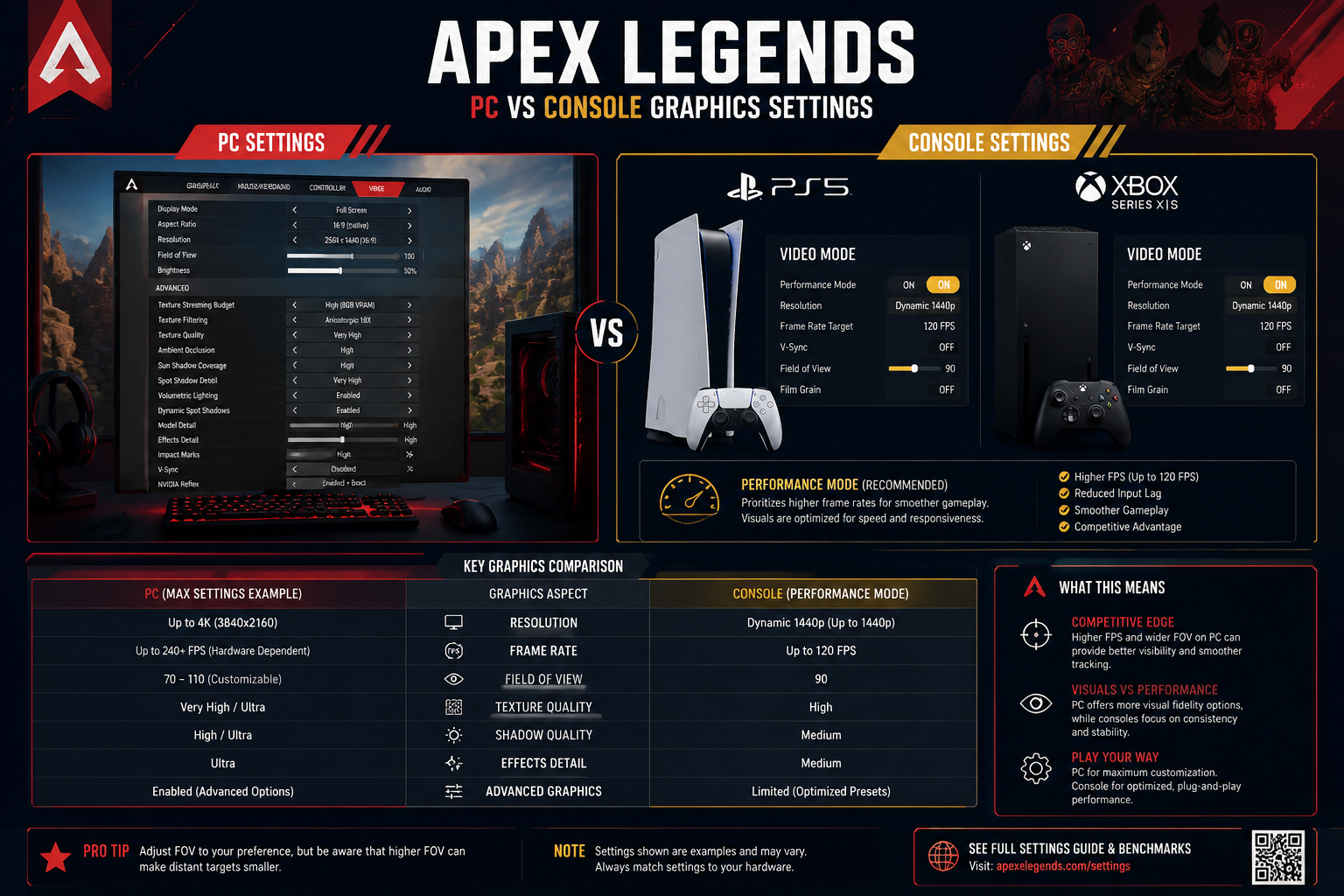
Recommended PC graphics settings for maximum FPS in 2026:
| Setting | Recommended Value | Reason |
|---|---|---|
| Display Mode | Full Screen | Lowest input latency |
| Resolution | Native (1080p or 1440p) | Clarity for target acquisition |
| V-Sync | Disabled | Reduces input lag |
| Anti-Aliasing | TSAA or None | TSAA is low cost; None for max FPS |
| Texture Streaming Budget | Medium | Balance of clarity and VRAM use |
| Texture Filtering | Anisotropic 4x | Minimal performance cost |
| Ambient Occlusion Quality | Disabled | High cost, low competitive value |
| Sun Shadow Coverage | Low | Major FPS impact |
| Spot Shadow Detail | Disabled | Significant FPS gain |
| Volumetric Lighting | Disabled | Noticeable FPS improvement |
| Dynamic Spot Shadows | Disabled | High cost, no gameplay benefit |
| Model Detail | Medium | Keeps enemies visible at range |
| Effects Detail | Low | Reduces visual clutter in fights |
| Impact Marks | Low | Minimal gameplay value |
| Ragdolls | Low | No competitive impact |
Common mistake: Leaving V-Sync enabled. It caps your frame rate to your monitor’s refresh rate and adds input delay that makes the game feel sluggish, especially in fast-paced close-range fights.
How Do Pro Players Configure Sensitivity and Keybinds
Pro players in Apex Legends almost universally use low mouse sensitivity, which gives them more precise control during tracking and flick shots. The most common range is 400 to 800 DPI with an in-game sensitivity between 1.5 and 3.0, producing an effective eDPI (DPI multiplied by in-game sensitivity) of roughly 800 to 1600.
Pro player sensitivity benchmarks (based on publicly shared configs as of 2026):
- Average eDPI among top-ranked PC players: approximately 1000 to 1400
- ADS sensitivity multiplier: 1.0 (same sensitivity when aiming down sights)
- Mouse acceleration: always disabled
- Raw input: enabled
Keybind recommendations:
- Crouch: Left Ctrl or C (easy to hold during slides)
- Tactical ability: Q (left-hand reach without moving off WASD)
- Ultimate ability: Z or mouse side button
- Inventory: Tab (default, works well for most players)
- Ping: Middle mouse button for fast communication
For players looking at how other competitive shooters handle pro configurations, the Best CS2 Settings for Pro Players in 2026 guide covers similar low-sensitivity principles that apply across tactical shooters.
Choose lower sensitivity (eDPI under 1000) if: you play on a large mousepad and prefer tracking moving targets.
Choose higher sensitivity (eDPI 1400 to 2000) if: you play on a small desk and need faster 180-degree turns.
Apex Legends Settings for Low-End PC vs High-End Gaming Computer
The best Apex Legends settings differ significantly depending on your hardware. Low-end PCs should sacrifice almost all visual quality to maintain a stable 60 FPS minimum. High-end systems can afford medium textures and some anti-aliasing while still running well above 144 FPS.
Low-end PC (integrated graphics or GPU below GTX 1060 equivalent):
- Resolution: 1280×720 or 1600×900
- All quality settings: Low or Disabled
- FPS cap: 60 or uncapped
- Consider reducing resolution scale to 75% if FPS still dips
Mid-range PC (GTX 1660 / RX 5600 XT equivalent):
- Resolution: 1920×1080
- Textures: Medium, Shadows: Low, Effects: Low
- Target: 144 FPS consistently
High-end PC (RTX 3080 / RX 6800 XT or newer):
- Resolution: 1440p or 1080p with high refresh rate
- Textures: High, Anti-Aliasing: TSAA
- Shadows and volumetric lighting: still best kept disabled for competitive play
- Target: 200+ FPS
If you’re weighing platform decisions more broadly, the PlayStation vs Xbox vs PC: Best Gaming Platform in 2026 breakdown covers the hardware trade-offs in detail.
What Controller Settings Give Competitive Players an Advantage
The best controller settings for Apex Legends focus on reducing deadzone, increasing response curve precision, and setting a look sensitivity that allows both fast turns and fine aim. Most competitive console players use a deadzone between 3 and 8 and a look sensitivity between 4 and 6 on a 0 to 10 scale.
Recommended controller settings:
| Setting | Recommended Value |
|---|---|
| Button Layout | Bumper Jumper (frees thumbs for aim) |
| Stick Layout | Default or Southpaw |
| Look Sensitivity | 4 to 6 |
| ADS Sensitivity | 2 to 4 (lower for precision) |
| Deadzone | 3 to 8 (test for stick drift) |
| Response Curve | Classic or Linear |
| Trigger Deadzone | Low |
| Vibration | Off (reduces distraction) |
Bumper Jumper remaps jump to LB/L1, which means your right thumb never leaves the aim stick to jump. This is the single most impactful keybind change for console players.
Edge case: If your controller has stick drift, raise the deadzone to 10 to 15 temporarily rather than buying a new controller immediately. This masks drift without affecting most inputs.
How to Fix Input Lag and Optimize Performance on Console
Console players can reduce input lag in Apex Legends by enabling performance mode, disabling HDR when using a TV with slow response times, and using a monitor instead of a television where possible. Most modern TVs introduce 20 to 50ms of processing delay in standard mode, which is significant in a fast-paced battle royale.
Steps to reduce input lag on PS5 and Xbox Series X/S:
- Go to console system settings and enable Game Mode on your display.
- In Apex Legends video settings, select Performance Mode (60 FPS, lower resolution) over Quality Mode.
- Disable HDR if your display’s HDR processing adds latency.
- Use a wired connection for your controller where possible.
- Connect your console via ethernet rather than Wi-Fi to reduce network latency.
- Set your display to 1080p output if your TV performs better at that resolution.
Performance mode on PS5 and Xbox Series X targets 60 FPS at a dynamic resolution, which is the correct choice for competitive play in 2026. Quality mode targets higher resolution at 30 FPS, which is unsuitable for the game’s movement speed.
Best Audio Settings to Hear Footsteps and Enemy Positioning
Audio is one of the most underrated parts of the best Apex Legends settings. Setting the sound mix to “Headphones” and keeping the master volume high while reducing music volume gives players a clear advantage in tracking enemy movement.
Recommended audio settings:
- Sound Mix: Headphones (even if using speakers, this mix prioritizes directional audio)
- Master Volume: 70 to 80
- Music Volume: 0 to 20 (music masks footsteps and ability sounds)
- SFX Volume: 70 to 80
- Dialogue Volume: 50 (useful for callouts, not critical)
- Lobby Music: Off
What to listen for: Apex Legends has distinct audio cues for footsteps on different surfaces, zipline use, door openings, and ability activations. The “Headphones” mix enhances the stereo width of these cues, making it easier to judge whether an enemy is above, below, or beside you.
Common mistake: Using a headset with heavy bass boost. Bass-heavy audio profiles mask the high-frequency footstep sounds that indicate nearby enemies. A flat or “gaming” EQ profile works better for competitive awareness.
Recommended Settings for Beginners vs Experienced Players
Beginners and experienced players have different needs from their Apex Legends settings. Beginners benefit from a slightly higher sensitivity to build muscle memory for turning and tracking, while experienced players typically lower sensitivity for precision.
Beginner settings priorities:
- Sensitivity: Start at eDPI 1400 to 2000, then lower over time
- FOV: 100 to 104 (wider view helps learn map awareness)
- Crosshair color: Cyan or green (high visibility against most backgrounds)
- Minimap: Keep default, learn to read it actively
- Ping system: Learn all ping types before relying on voice chat
Experienced player priorities:
- Sensitivity: eDPI 800 to 1400 for precision
- FOV: 104 to 110 (maximum awareness in close-range fights)
- Disable unnecessary HUD elements to reduce screen clutter
- Custom keybinds for faster ability use
For players newer to the game who want to understand which legends suit different skill levels, the Apex Legends Tier List for 2026 is a useful companion resource.
Which Monitor Refresh Rate and Resolution Work Best for Apex Legends
A 1080p monitor running at 144 Hz is the best entry-level competitive setup for Apex Legends in 2026. Players with high-end PCs capable of pushing 240 FPS or more should consider a 240 Hz monitor, as the additional frames reduce motion blur and improve target tracking during fast movement.
Monitor recommendations by budget:
- Budget: 1080p 144 Hz (IPS or TN panel, 1ms response time)
- Mid-range: 1440p 165 Hz (IPS panel for color accuracy and response)
- High-end: 1080p or 1440p 240 Hz or 360 Hz
Resolution choice: 1080p gives higher FPS on the same GPU compared to 1440p. Competitive players often prefer 1080p at 240 Hz over 1440p at 144 Hz because frame rate consistency matters more than pixel count in a battle royale.
Panel type: IPS panels offer better color accuracy and viewing angles than TN panels. TN panels have slightly faster response times but the difference is negligible for most players in 2026 hardware generations.
How to Adjust Crosshair and Recoil Control Settings
Apex Legends does not offer a custom crosshair editor the way some tactical shooters do, but players can adjust crosshair color and recoil control through sensitivity and ADS settings. For crosshair visibility, cyan and green stand out against the game’s brown and grey environments. For crosshair settings in other games, the Best Valorant Crosshair Settings for 2026 guide shows how color and size choices affect aim consistency.
Recoil control tips:
- Lower your ADS sensitivity multiplier to 0.8 or lower for weapons with heavy vertical recoil (R-301, Flatline).
- Practice recoil patterns in the firing range before ranked matches.
- Avoid the common mistake of over-compensating on semi-auto weapons, which pulls shots below target.
Crosshair color by environment:
- Default white: visible in most situations but can blend with bright sky backgrounds
- Cyan: high contrast against red and brown terrain
- Green: good visibility in most lighting conditions
Common Mistakes New Players Make with Apex Legends Settings
The single most damaging mistake new players make is launching Apex Legends on maximum graphics settings. This tanks frame rates, introduces input lag, and makes the game harder to play competitively. Other common errors include leaving V-Sync on, using default controller deadzones without testing for drift, and ignoring audio settings entirely.
Top 5 settings mistakes and fixes:
- V-Sync enabled: Disable it immediately. Use an FPS cap instead if you experience screen tearing.
- Maximum graphics on mid-range hardware: Drop shadows, volumetric lighting, and effects to low.
- Default controller deadzone: Test your specific controller and adjust deadzone to the lowest value that eliminates drift.
- Music volume at 100%: Lower to 0 or 20. Music actively hides footstep audio.
- Wrong FOV: Default FOV of 90 is too narrow for most players. Set it to 100 to 110.
What Hardware Upgrades Improve Apex Legends Performance
The most impactful hardware upgrade for Apex Legends is a faster monitor, not a faster GPU, for players already running above 60 FPS. If you’re below 60 FPS consistently, a GPU upgrade or RAM upgrade (to 16 GB dual-channel) will help most.
Upgrade priority order:
- Monitor (144 Hz minimum if still on 60 Hz)
- RAM (16 GB dual-channel if below that)
- GPU (if averaging below 100 FPS on current settings)
- CPU (if GPU usage is consistently below 90% during drops)
- SSD (reduces load times, not FPS, but improves overall experience)
Edge case: Players running Apex Legends on a laptop should check if the game is using the dedicated GPU rather than integrated graphics. This is a common issue on Windows laptops that can be fixed in NVIDIA Control Panel or AMD Radeon Settings by forcing the dedicated GPU for the Apex Legends executable.
For players interested in how cloud gaming is changing the hardware equation, How Cloud Gaming Is Changing PC Gaming in 2026 covers the emerging alternatives to local hardware upgrades.
Are There Different Optimal Settings for Each Legend
Core settings like sensitivity, FOV, and graphics apply equally to all legends. However, movement-heavy legends such as Octane, Pathfinder, and Valkyrie benefit from a higher FOV (104 to 110) because their abilities involve rapid positional changes where wider awareness helps. Legends that rely on precision abilities, like Vantage or Crypto, may benefit from a slightly lower ADS sensitivity for more controlled aim.
Legend-specific adjustments:
- Octane, Pathfinder, Wraith: Higher FOV (106 to 110), comfortable slide-jump keybind
- Vantage, Crypto: Lower ADS sensitivity for ability precision
- Gibraltar, Newcastle: No specific setting changes needed; focus on cover usage
The Apex Legends Tier List for 2026 breaks down which legends are strongest in the current meta, which can inform which playstyle and corresponding settings to prioritize.
How to Balance Visual Quality with Competitive Performance
Balancing visual quality with competitive performance means keeping settings that help you see enemies clearly while cutting settings that only add visual flair. Texture quality and model detail directly affect how clearly you can identify enemies at range. Shadow quality, volumetric lighting, and effects detail do not help you see enemies and cost significant performance.
Keep these settings at medium or above:
- Texture streaming budget
- Model detail
- Anti-aliasing (TSAA at minimum)
Always set these to low or disabled:
- Volumetric lighting
- Dynamic spot shadows
- Ambient occlusion
- Ragdolls
- Impact marks
This split approach gives Apex Legends a clean, readable look while maintaining the high frame rates that competitive play demands.
Final Thoughts
Getting the best Apex Legends settings right in 2026 comes down to a clear priority order: frame rate first, audio second, visual clarity third. Competitive players on both PC and console gain the most by disabling performance-heavy graphics options, dialing in a low and consistent sensitivity, and configuring audio to hear enemy movement clearly.
Actionable next steps:
- Open Apex Legends and disable V-Sync, volumetric lighting, ambient occlusion, and dynamic spot shadows immediately.
- Set your FOV to 104 and test from there.
- Lower your music volume to 20 or below and switch the sound mix to Headphones.
- Console players: switch to performance mode if not already enabled.
- Test your controller deadzone and reduce it to the lowest value that eliminates stick drift.
- Spend 15 minutes in the firing range after any sensitivity change before jumping into ranked.
Small setting changes compound over time into real performance gains. Start with the graphics and audio adjustments, then refine sensitivity over several sessions rather than changing everything at once.
Frequently Asked Questions (FAQs)
What is the best FOV for Apex Legends in 2026?
Most competitive players use an FOV between 100 and 110. The default of 90 is too narrow. Start at 104 and adjust from there based on comfort.
Should I use performance mode or quality mode on console?
Always use performance mode for competitive play. It targets 60 FPS, which is significantly smoother than the 30 FPS quality mode, and responsiveness matters more than resolution in Apex Legends.
What DPI should I use for Apex Legends on PC?
400 to 800 DPI is the standard range for competitive players. Combine it with an in-game sensitivity of 1.5 to 3.0 for an eDPI between 800 and 1600.
Does turning off V-Sync really make a difference?
Yes. V-Sync adds input delay and caps your frame rate to your monitor’s refresh rate. Disable it and use an in-game FPS cap set 3 to 5 frames above your monitor’s refresh rate instead.
What is the best sound setting for hearing footsteps?
Set the sound mix to “Headphones” and reduce music volume to 0 or 20. This makes footstep audio noticeably clearer and improves directional awareness.
Is 60 FPS enough for Apex Legends?
60 FPS is playable but not ideal. At 60 FPS, fast movement and tracking feel less smooth. 144 FPS is the competitive minimum for PC players.
What controller layout do pro console players use?
Bumper Jumper is the most popular layout among competitive console players because it maps jump to a bumper button, keeping the right thumb on the aim stick at all times.
How do I reduce input lag on PS5 or Xbox?
Enable Game Mode on your display, use performance mode in Apex Legends, connect via ethernet, and use a wired controller where possible.