Call of Duty: Modern Warfare 4 raises the bar for competitive multiplayer with revamped gunplay, smoother movement mechanics, improved visibility, and the new Ballistic Authority system designed to make every firefight feel more responsive and realistic. With Infinity Ward placing a stronger focus on weapon handling, movement fluidity, and PC optimization than ever before, choosing the right settings can make a significant difference in your performance, whether you’re grinding Ranked Play, dominating public matches, or exploring the game’s new modes.
In this complete Modern Warfare 4 Best Settings Guide for 2026, we’ll break down the optimal controller, keyboard and mouse, graphics, audio, and interface settings to help you maximize FPS, reduce input lag, improve enemy visibility, and gain a competitive edge. Whether you’re playing on PC, PlayStation 5, Xbox Series X|S, or Nintendo Switch 2, these recommended settings will help you get the smoothest and most responsive gameplay experience possible.
What Are the Best Graphics Settings for MW4 on a Low-End PC
Low-end PC players can run MW4 at a stable 60 FPS by targeting 1080p with a mix of Low and Medium settings, focusing cuts on shadows, reflections, and particle effects rather than texture resolution.
Here is a proven low-end configuration:
| Setting | Recommended Value |
|---|---|
| Display Resolution | 1080p (or 900p if needed) |
| Render Resolution | 85–100% |
| Texture Resolution | Medium |
| Shadow Map Resolution | Low |
| Screen Space Shadows | Disabled |
| Ambient Occlusion | Disabled |
| Anti-Aliasing | DLSS Quality or FSR Quality |
| Depth of Field | Disabled |
| Motion Blur | Disabled (World and Weapon) |
| Particle Quality | Low |
| Tessellation | Near |
Key rule: Texture resolution has a smaller FPS impact than shadows or ambient occlusion. Keep textures at Medium for visual clarity — blurry textures make enemies harder to spot — and cut everything else.
Common mistake: Leaving DLSS or FSR disabled on a low-end machine. These upscaling tools recover 20–40% frame rate with minimal visual cost, especially at Quality or Balanced presets.
How Competitive Players Configure Controller Sensitivity
Competitive controller players in MW4 typically use a sensitivity between 5 and 7 on both horizontal and vertical axes, with a slight reduction on vertical (often 0.85–0.90 multiplier) to prevent overshooting during vertical tracking.
Recommended competitive controller settings:
- Horizontal Sensitivity: 6
- Vertical Sensitivity: 5 (or use a 0.88 vertical multiplier)
- ADS Sensitivity Multiplier: 0.80 (slows ADS movement for precision)
- Response Curve: Dynamic or Linear (avoid Standard for competitive play)
- Deadzone (Left/Right Stick): Set to the lowest value before stick drift occurs — usually 0.03–0.05
- Trigger Effect (PS5): Disabled — adaptive triggers add resistance that slows reaction time
Decision rule: Use Linear response curve if you want 1:1 stick-to-camera movement. Use Dynamic if you prefer slower movement at low stick deflection and faster at full deflection — better for players who flick between targets.
For a broader look at how pro players configure their inputs across FPS titles, see this Best CS2 Settings for Pro Players guide for comparison.
What Aim Assist Settings Work Best for Controller vs Keyboard
Controller players should use “Black Ops” aim assist for multiplayer and “Focusing” for Warzone. Keyboard and mouse players should disable aim assist entirely — it actively interferes with mouse input.
Controller aim assist modes explained:
- Black Ops: Strongest rotational assist; best for aggressive close-to-mid range play in multiplayer.
- Precision: Requires the reticle to be near the target before activating; rewards players with good natural aim.
- Focusing: Slows aim when near a target; ideal for longer-range Warzone engagements.
- Standard: A balanced option, but outperformed by Black Ops in most multiplayer scenarios.
Keyboard and mouse: Set aim assist to Off. Even a small amount of aim assist on mouse creates inconsistent camera behavior. Mouse players should focus on DPI and in-game sensitivity instead:
- 800 DPI is the most common competitive baseline.
- In-game sensitivity of 6.0–8.0 covers most playstyles.
- Use raw input and disable mouse acceleration in both Windows and the game.
How Much RAM and GPU Do You Really Need to Run MW4 Smoothly
For smooth 1080p/60 FPS gameplay, MW4 requires at least 16GB of RAM and a GPU equivalent to an RTX 3060 or RX 6600. For 1440p/144 FPS competitive play, a GPU in the RTX 4070 or RX 7800 XT class is the practical minimum, based on Activision’s published recommended specifications.
Hardware tiers at a glance:
| Target | GPU | RAM | Storage |
|---|---|---|---|
| 1080p / 60 FPS (Low-Med) | RTX 3060 / RX 6600 | 16GB DDR4 | SSD recommended |
| 1080p / 144 FPS (High) | RTX 4060 Ti / RX 7700 | 16GB DDR4 | NVMe SSD |
| 1440p / 144 FPS (High) | RTX 4070 / RX 7800 XT | 32GB DDR5 | NVMe SSD |
| 4K / 60 FPS (Ultra) | RTX 4080 / RX 7900 XTX | 32GB DDR5 | NVMe SSD |
Edge case: Running MW4 on 8GB RAM causes frequent stuttering due to the game’s texture streaming system. Upgrading RAM is the single highest-value hardware investment for players on older systems.
If you’re weighing platform decisions, the PlayStation vs Xbox vs PC comparison breaks down which platform delivers the best value for competitive gaming in 2026.
Which Audio Settings Give the Best Directional Sound Advantage
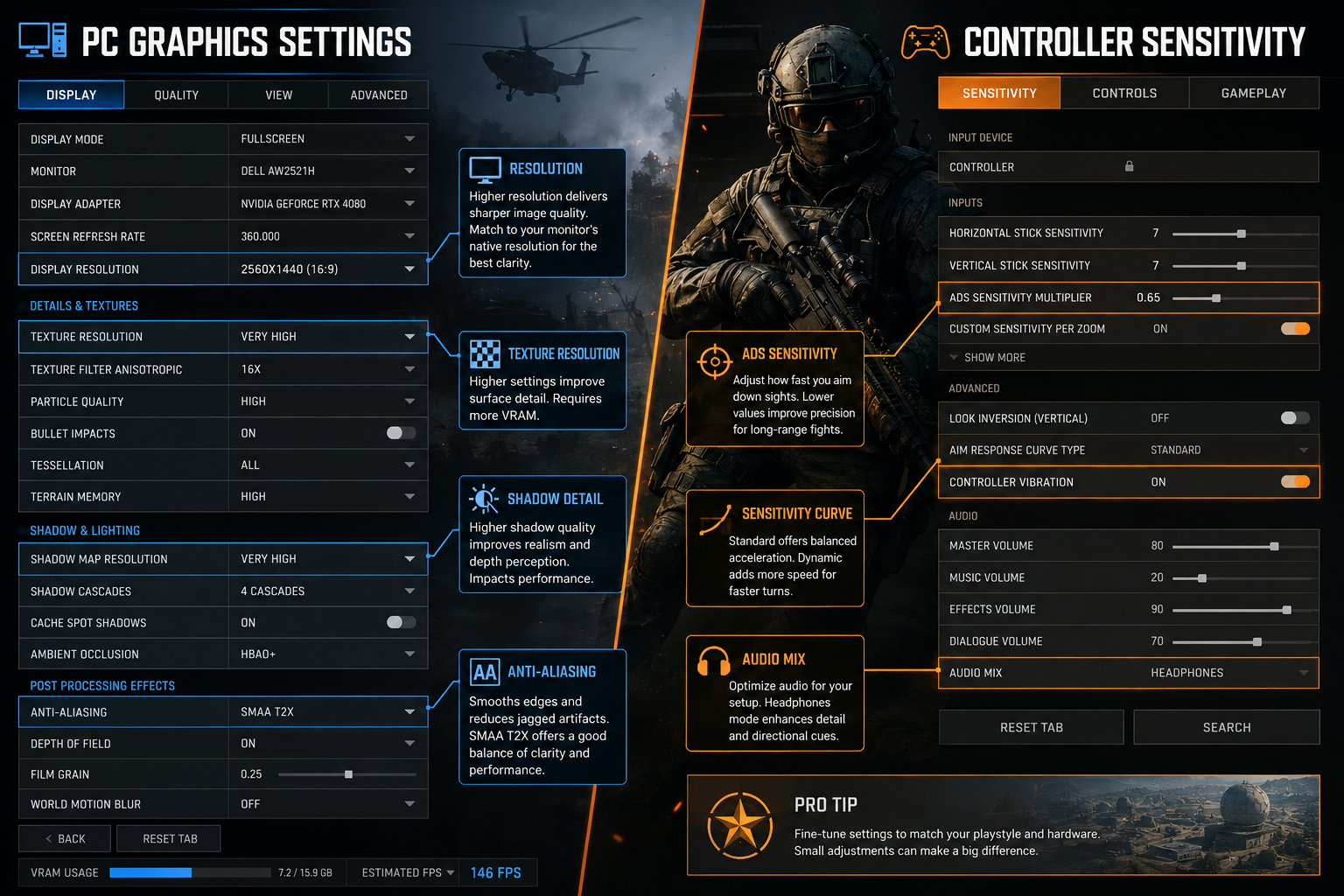
The “Headphones” audio mix in MW4 provides the clearest directional audio for competitive play, particularly for footstep detection and gunshot location. Players using surround sound speakers should use “Home Theater” instead.
Best audio configuration for competitive play:
- Audio Mix: Headphones (for headset users) or Home Theater (for speaker setups)
- Master Volume: 80–90 (high enough to hear environmental cues clearly)
- Music Volume: 0–10 (music masks footsteps and ambient audio)
- Dialogue Volume: 50 (operator callouts provide useful information)
- Effects Volume: 100 (gunshots, footsteps, and explosions are the primary audio cues)
- Mono Audio: Off (stereo separation is essential for left/right positioning)
- Subtitles: Optional, but useful for players who reduce effects volume
Pro tip: Footstep audio in MW4 is mixed at a lower frequency than weapon sounds. If footsteps are hard to hear, increase Effects Volume and reduce Master Volume slightly to avoid ear fatigue at high volumes.
What Common Mistakes Do New Players Make With Their Settings
New players most commonly damage their performance by leaving motion blur enabled, running sensitivity too high, and ignoring the difference between field of view (FOV) and resolution scale.
Top five new player setting mistakes:
- Motion blur left on: Both World and Weapon motion blur reduce visual clarity during movement and ADS. Turn both off immediately.
- Sensitivity set too high: High sensitivity feels fast but reduces precision. Drop to a lower setting and practice tracking rather than flicking.
- FOV set too low: A FOV of 100–105 on PC gives a wider view without significant distortion. Console players are often limited to 80–90 but should push to the maximum available.
- V-Sync enabled: V-Sync adds input latency. Use the in-game frame rate cap instead, set slightly below your monitor’s refresh rate.
- Ignoring colorblind settings: Even non-colorblind players sometimes find that Deuteranopia or Tritanopia modes increase enemy visibility in certain map environments.
Are There Recommended Settings for Different Game Modes
Yes. Warzone and multiplayer benefit from different configurations. Multiplayer favors higher sensitivity and tighter FOV for close-quarters reaction speed, while Warzone rewards lower sensitivity, higher FOV, and stronger directional audio for long-range engagements.
Mode-specific adjustments:
| Setting | Multiplayer | Warzone |
|---|---|---|
| Sensitivity | 6–8 | 4–6 |
| FOV | 100–105 | 105–110 |
| Aim Assist Mode | Black Ops | Focusing |
| Audio Mix | Headphones | Headphones |
| Minimap Rotation | Rotating | Fixed (easier for navigation) |
| Crosshair Color | Bright green or cyan | High-contrast white or red |
For Warzone-specific weapon and loadout decisions that complement these settings, check out the Best Warzone Loadouts guide for 2026.
How to Optimize Settings If You Have Motion Sickness
Motion sickness in MW4 is primarily triggered by high FOV, motion blur, and camera bob effects. Reducing FOV to 80–90, disabling all motion blur, and turning off weapon bob and sway significantly reduces symptoms for most players.
Motion sickness reduction checklist:
- Set FOV to 80–90 (lower FOV reduces perceived speed)
- Disable World Motion Blur and Weapon Motion Blur
- Disable Depth of Field
- Reduce or disable Camera Bob (found in Advanced settings)
- Turn off Film Grain (reduces visual noise that can trigger nausea)
- Enable Reduced Motion in the Accessibility menu if available
- Play in shorter sessions with breaks — adaptation takes time
Note: Some players find that a higher, stable frame rate (90+ FPS) actually reduces motion sickness compared to a fluctuating lower frame rate. Prioritize frame rate stability over maximum visual quality if this applies.
What Are the Top Pro Player Config Recommendations
Pro players across MW4 tournaments in 2026 consistently share several configuration choices: motion blur off, film grain off, high FOV, low-to-mid sensitivity, and minimal HUD clutter.
Pro player consensus settings (controller):
- Sensitivity: 5–7 horizontal, 4–6 vertical
- ADS Multiplier: 0.80–0.88
- Aim Assist: Black Ops
- Response Curve: Dynamic or Linear
- Deadzone: Minimum viable (0.03–0.05)
Pro player consensus settings (PC/mouse):
- DPI: 800
- In-game sensitivity: 6.0–7.5
- Polling rate: 1000Hz or higher
- Raw input: Enabled
- Mouse acceleration: Disabled
HUD and visual settings used by most pros:
- Film Grain: 0
- Motion Blur (World + Weapon): Off
- Depth of Field: Off
- FOV: 103–110
- Minimap: Always visible, rotating
Competitive crosshair and visual configuration principles apply across FPS games — the Best Valorant Crosshair Settings guide covers crosshair philosophy that transfers directly to MW4’s reticle customization.
Which Settings Drain Battery Fastest on Laptop
On a gaming laptop, the biggest battery drains in MW4 are uncapped frame rate, ray tracing, and running the display at maximum brightness. Capping FPS at 60, disabling ray tracing, and reducing resolution scale to 85% can extend battery life by 30–50% compared to default settings.
Battery-saving configuration for laptop play:
- Power Mode: Set to “Balanced” or “High Performance” in Windows (not “Best Performance” which maximizes wattage)
- FPS Cap: 60 (prevents GPU from running at 100% load constantly)
- Ray Tracing: Disabled
- Resolution Scale: 85%
- Shadow Quality: Low
- Texture Streaming: Enabled (reduces VRAM pressure)
- Display Brightness: 60–70%
Decision rule: If you’re playing on battery without a charger, use the Low preset as a base and only increase texture quality. Every other setting at Low will meaningfully extend play time.
How to Fix Stuttering and Lag With Your Current Hardware
Stuttering in MW4 is most commonly caused by insufficient VRAM, on-demand texture streaming over a slow connection, or outdated GPU drivers. The fix depends on the cause, but disabling on-demand texture streaming and updating drivers resolves the issue for the majority of players.
Step-by-step stuttering fix:
- Update GPU drivers to the latest version (NVIDIA or AMD).
- In MW4 graphics settings, disable “On-Demand Texture Streaming” if your internet connection is under 50 Mbps.
- Check VRAM usage in the settings menu — if it shows red or near-limit warnings, reduce texture resolution.
- Set Shader Precompilation to run fully before playing (do not skip this step after updates).
- Disable Windows Game Mode if stuttering occurs during background app activity.
- Set MW4 process priority to “High” in Windows Task Manager.
- If using an HDD, move MW4 to an SSD — texture pop-in and micro-stutters are heavily storage-dependent.
Edge case: Players on AMD GPUs should check that Radeon Anti-Lag is enabled in AMD Software for reduced input latency, and that FreeSync is active if the monitor supports it.
What Settings Work Best for Competitive Esports Play
The Call of Duty Modern Warfare 4 best settings for competitive esports prioritize maximum frame rate, minimal visual noise, and the lowest possible input latency. Every visual feature that does not directly help target identification should be disabled.
Esports-optimized configuration summary:
- Resolution: Native 1080p (avoid supersampling; it costs FPS)
- Frame Rate Target: Uncapped or capped at monitor refresh rate (240Hz if available)
- V-Sync: Off
- NVIDIA Reflex / AMD Anti-Lag: On (reduces system latency)
- Texture Quality: Medium-High (enemy model clarity matters)
- All post-processing (blur, grain, DOF): Off
- FOV: 103–110
- HUD: Minimal — disable kill feed clutter, keep minimap and ammo counter
- Controller deadzone: Minimum viable
- Mouse polling rate: 1000Hz or 2000Hz (if supported)
For players also competing in other titles, the same frame-rate-first philosophy applies — see the Apex Legends Tier List and settings context for how top players configure across battle royale titles.
Are There Accessibility Settings for Players With Disabilities
MW4 includes a dedicated Accessibility menu with colorblind modes, text scaling, mono audio, subtitles, and button remapping. These options are not just for players with disabilities — colorblind modes and high-contrast UI options benefit many competitive players as well.
Key accessibility features in MW4:
- Colorblind Modes: Deuteranopia, Protanopia, Tritanopia — each adjusts enemy and UI color coding
- Text Size: Scalable from small to extra-large across HUD and menus
- Mono Audio: Combines stereo channels for players with single-ear hearing loss
- Subtitles: Available for all dialogue and key audio cues
- Button Remapping: Full remapping on both controller and keyboard
- Aim Assist Strength: Adjustable for players who need additional assistance
- Reduced Motion: Reduces camera effects and screen shake
- High Contrast Mode: Increases UI element contrast for visibility
Note for players with photosensitivity: The game includes a photosensitivity warning and offers a setting to reduce flashing effects in the Accessibility menu. Enable this before playing if strobe or flash effects are a concern.
Final Thoughts
Getting the most out of Call of Duty Modern Warfare 4 best settings is not about finding one magic configuration — it’s about matching your setup to your hardware, playstyle, and game mode. Start with the fundamentals: disable motion blur, cap your frame rate to match your monitor, set sensitivity lower than feels natural at first, and configure audio to prioritize directional cues over music and ambient effects.
Actionable next steps:
- Open MW4 graphics settings and disable motion blur, depth of field, and film grain immediately.
- Run Shader Precompilation to completion before your next session.
- Set your audio mix to Headphones and reduce music volume to zero.
- Lower shadow quality and ambient occlusion to reclaim 15–25% FPS on any hardware tier.
- Test sensitivity at a lower value for two full sessions before deciding it’s wrong — adaptation takes time.
- Check the Accessibility menu even if you don’t have a disability — colorblind modes and reduced motion settings often improve the competitive experience for all players.
For players who want to extend their competitive edge beyond settings, the Best Warzone Loadouts guide and the Most Anticipated Games of June 2026 are worth bookmarking as the MW4 meta continues to evolve.
Frequently Asked Questions (FAQs)
What is the single most important setting to change in MW4 for better performance?
Disable motion blur (both World and Weapon). It has zero competitive benefit and reduces visual clarity during movement and ADS — the two moments when clarity matters most.
What FOV should I use in MW4 on PC?
Most competitive players use 103–110 FOV on PC. A higher FOV shows more of the environment but can make distant targets appear smaller. Start at 105 and adjust based on comfort.
Does aim assist work on keyboard and mouse in MW4?
Aim assist is designed for controller input. On keyboard and mouse, it should be set to Off — any active aim assist on mouse creates unpredictable camera behavior.
What is the best audio mix setting for hearing footsteps?
Use “Headphones” audio mix with Effects Volume at 100 and Music Volume at 0–10. This combination gives the clearest footstep and gunshot directionality.
How do I reduce input lag in MW4 on console?
Enable Game Mode on your TV or monitor, disable V-Sync in the game settings, and use a wired controller connection. These three changes reduce input latency significantly on console.
Is 8GB of RAM enough for MW4?
8GB RAM causes noticeable stuttering and texture pop-in. 16GB is the practical minimum for stable performance. Upgrading RAM is the highest-value hardware change for players on older systems.
What sensitivity do most pro players use in MW4?
Controller pros typically use 5–7 horizontal and 4–6 vertical sensitivity. Mouse players use 800 DPI with in-game sensitivity of 6.0–7.5. Both groups prioritize control over speed.