
Valorant continues to dominate the competitive FPS scene in 2026, with millions of players striving to improve their aim, reaction time, and overall performance. While skill, game sense, and teamwork remain the most important factors for success, the right in-game settings can make a significant difference in consistency and comfort. Professional Valorant players spend countless hours fine-tuning their configurations to maximize accuracy, visibility, and responsiveness, giving them every possible advantage during high-pressure matches.
From crosshair customization and mouse sensitivity to graphics settings, minimap preferences, and audio configurations, pro players carefully optimize every aspect of the game to suit their playstyle. However, there is no single “perfect” setup—what works for one professional may not work for another. Understanding the settings used by top-tier players can help you discover configurations that improve your own gameplay and provide a solid foundation for competitive improvement.
In this guide, we’ll break down the best Valorant settings used by professional players in 2026, explain why these settings are popular, and help you find the ideal balance between performance, visibility, and precision. Whether you’re a casual player looking to climb the ranked ladder or an aspiring esports competitor, these pro-inspired settings can help elevate your game to the next level.
Why Do Pro Players Obsess Over Settings?
Professional Valorant players treat settings as a competitive tool, not a preference. The difference between 144 FPS and 300 FPS is measurable in input latency: at 144 FPS, a frame takes roughly 6.9 milliseconds to render, while at 300 FPS that drops to about 3.3 milliseconds. Over hundreds of gunfights, those milliseconds compound.
Beyond raw performance, settings affect how clearly enemies appear on screen, how accurately audio communicates position, and how predictably the mouse translates physical movement into in-game aim. Pros spend hours testing configurations precisely because small adjustments produce real, repeatable results.
Best Valorant Video Settings for Pros
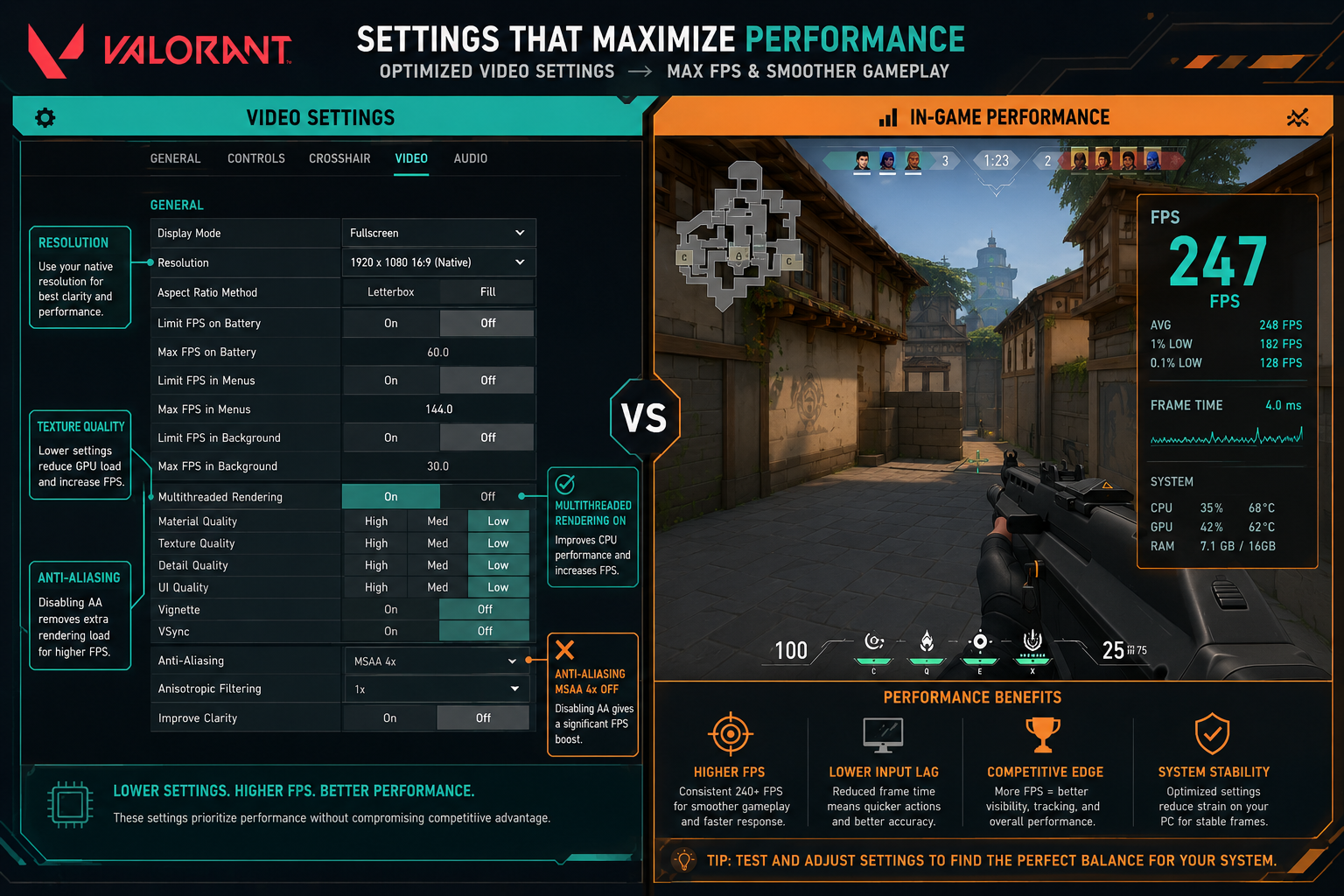
The goal of pro-level video settings is maximum frame rate and visual clarity, not beauty. Turn off anything that adds rendering cost without improving enemy visibility.
Recommended Video Settings:
| Setting | Pro Recommendation | Reason |
|---|---|---|
| Resolution | 1920×1080 (native) | Sharpest image, widest FOV |
| Display Mode | Fullscreen | Lowest input latency |
| Frame Rate Limit | Always On (match monitor Hz or higher) | Prevents frame spikes |
| Multithreaded Rendering | On | Major FPS gain on modern CPUs |
| Material Quality | Low | Reduces GPU load |
| Texture Quality | Low | Reduces VRAM usage |
| Detail Quality | Low | Fewer distracting particles |
| UI Quality | Low | Minor gain, no visual downside |
| Vignette | Off | Clearer peripheral vision |
| VSync | Off | Reduces input lag |
| Anti-Aliasing | MSAA 2x or Off | Sharpens edges at low cost |
| Anisotropic Filtering | 4x | Minimal cost, cleaner textures |
| Bloom | Off | Removes visual noise |
| Distortion | Off | Cleaner screen during abilities |
| Shadows | Off | Removes GPU overhead |
| Nvidia Reflex | On + Boost (if available) | Cuts system latency |
Common mistake: Leaving VSync on because it “feels smoother.” VSync adds a full frame of latency and causes stuttering when FPS drops below the refresh rate. Turn it off and use a frame rate limiter instead.
Best Valorant Mouse Settings for Pros
Low sensitivity paired with a high-quality mouse sensor gives pros the most consistent aim. The metric that matters is eDPI (effective DPI), calculated by multiplying hardware DPI by in-game sensitivity.
Most professional Valorant players use an eDPI between 200 and 400. For context, TenZ has used settings in this range throughout his career, and tracker sites like prosettings.net document hundreds of pro configs publicly.
How to find your eDPI:
- Set mouse DPI on hardware software (400, 800, or 1600 are common)
- Set in-game sensitivity in Valorant’s settings
- Multiply: DPI x Sensitivity = eDPI
- Aim for 200-400 eDPI for most players
Additional mouse settings:
- Windows pointer speed: Set to 6/11 (the default, no acceleration)
- Enhance pointer precision: Off (this adds acceleration, which breaks muscle memory)
- Polling rate: 1000Hz minimum; 4000Hz or 8000Hz if your mouse supports it
- Raw input buffer: On in Valorant settings
Choose 400 DPI if you have a large mousepad and prefer wide arm movements. Choose 800 DPI if you prefer a medium pad and wrist-dominant aim. Avoid going above 1600 DPI as sensor jitter becomes more noticeable at high DPI on most mice.
Best Valorant Crosshair Settings for Pros
Crosshair settings are one of the most personal choices in Valorant, but pro trends point clearly toward small, static crosshairs with no outlines and no movement error.
For a deep breakdown of specific pro crosshair codes and configurations, see the Best Valorant Crosshair Settings for 2026: Pro Configs guide.
General pro crosshair principles:
- Color: Cyan or green for visibility against most map backgrounds
- Outlines: Off (outlines add visual clutter and obscure the target)
- Center dot: Personal preference; many pros use it for close-range reference
- Inner lines: Short (length 2-4), thin (thickness 1), with no gap or a gap of 1-2
- Outer lines: Off entirely
- Movement error: Off
- Firing error: Off (this keeps the crosshair static so you learn actual spray patterns)
Why turn off firing error? Showing crosshair expansion trains players to rely on visual feedback rather than internalizing spray control. Pros learn actual recoil patterns and correct manually, which is faster and more reliable.
Best Valorant Audio Settings for Pros
Sound is a primary information source in Valorant. Footsteps, ability cues, and gunfire all carry positional data that can determine whether a player wins or loses a round.
Key audio settings:
- Master volume: 85-100%
- Sound effects volume: 100%
- Voice-over volume: 70-80% (reduce agent chatter slightly)
- Music volume: 0% (eliminates distraction during rounds)
- HRTF (Head-Related Transfer Function): On
HRTF simulates 3D audio positioning using stereo headphones. It makes footsteps sound like they come from a specific direction and elevation, which is critical for tracking enemies through walls. Most pros use a quality stereo headset rather than surround sound hardware, letting HRTF handle the spatial processing in software.
Common mistake: Using a surround sound headset with its own spatial audio processing active while also running HRTF. The two systems conflict and produce muddier positional audio. Pick one or the other; HRTF alone is generally more accurate.
Best Valorant Settings for Pros: Windows and System Optimization
The best Valorant settings for pros extend beyond the game client. Windows configuration directly affects input latency, frame pacing, and CPU scheduling.
Windows optimizations worth applying:
- Power plan: Set to High Performance or Ultimate Performance (search “Power Options” in Windows)
- Game Mode: On (Windows Settings > Gaming > Game Mode)
- Hardware-accelerated GPU scheduling (HAGS): On for most modern GPUs; test with your specific hardware
- Background apps: Close Discord overlays, browser tabs, and any recording software during ranked play
- Storage: Install Valorant on an SSD; load times affect round-start positioning
Network settings:
- Use a wired Ethernet connection whenever possible
- Set DNS to a fast public resolver (Cloudflare 1.1.1.1 or Google 8.8.8.8)
- In Valorant, set the server region manually to the lowest-ping option rather than auto-select
For players comparing Valorant’s approach to other tactical shooters, the Best CS2 Settings for Pro Players in 2026 guide covers similar optimization principles that apply across the genre.
Best Valorant Keybind and Interface Settings for Pros
Default keybinds work for most players, but a few adjustments are nearly universal among pros.
Common pro keybind choices:
- Walk: Left Shift (default) or remapped to Caps Lock for easier access
- Abilities (C, Q, E, X): Most pros keep defaults but remap ultimate to a thumb button on mouse if available
- Buy menu: Keep B, but consider binding individual weapon purchases to number keys for speed
- Minimap scale: 1.1 to 1.3 (slightly larger than default for faster reads)
- Minimap zoom: 0.9 to 1.0
Interface tips:
- Enable “Show Bullet Tracers” off in competitive play (reduces visual noise)
- Set “Network Buffering” to Minimum in General settings for lower latency on stable connections
- Keep the FPS counter visible (enable in Video > Stats) to monitor for drops
How Do the Best Valorant Settings for Pros Differ by Role?
Settings are largely consistent across roles, but a few adjustments make sense depending on playstyle.
Duelists and entry fraggers benefit most from the lowest possible input lag, so they should prioritize frame rate above everything. Agents like Jett and Reyna demand fast flick aim, which favors lower sensitivity and higher polling rates. Check the Valorant Agent Tier List for 2026 to understand which agents are currently viable and what playstyle each demands.
Controllers and Sentinels (Omen, Sage, Killjoy) rely more on game sense and positioning than raw aim speed. These players may tolerate slightly higher sensitivity for faster camera movement across the map, though the eDPI range of 200-400 still applies.
IGL and support players should prioritize audio clarity and minimap readability, since they’re processing more information simultaneously than fraggers.
What Hardware Do Pro Valorant Players Actually Use?
Settings only matter if the hardware can deliver on them. Most professional Valorant players use:
- Monitor: 240Hz to 360Hz, 1080p, IPS or TN panel with 1ms response time
- Mouse: Lightweight (under 80g), high-polling-rate sensor (Logitech G Pro X Superlight 2, Razer DeathAdder V3, Zowie EC series are commonly seen on pro desks)
- Headset: Open-back or closed-back stereo headset; Audio-Technica, Sennheiser, and HyperX are common
- CPU: Intel Core i7/i9 or AMD Ryzen 7/9 current generation; Valorant is CPU-bound at low settings
- GPU: Mid-to-high-end discrete GPU; the game is not GPU-intensive at low settings, so a mid-range card easily sustains 300+ FPS
Final Thoughts
Applying the best Valorant settings for pros is one of the fastest ways to close the gap between raw skill and in-game performance. Start with the highest-impact changes: turn off VSync, disable bloom and shadows, enable multithreaded rendering, set your eDPI between 200 and 400, and enable HRTF audio. Then work outward to Windows power settings, network configuration, and hardware polling rates.
Actionable next steps:
- Open Valorant’s video settings and apply the Low preset, then manually enable multithreaded rendering and Nvidia Reflex
- Calculate your current eDPI and adjust if it falls outside the 200-400 range
- Enable HRTF in audio settings and test it in a deathmatch
- Set Windows power plan to High Performance and disable pointer precision
- Check your crosshair against the Best Valorant Crosshair Settings for 2026: Pro Configs and simplify if needed
- Stay current with balance changes via the Valorant Episode Patch Notes Explained 2026 so settings adjustments stay relevant to the current meta
Consistency matters more than perfection. Lock in a configuration, practice with it for two to three weeks before changing anything, and track whether rank and accuracy metrics improve. Settings are a foundation; the rest is repetition.
Frequently Asked Questions (FAQs)
What resolution do most pro Valorant players use?
Most pros use 1920×1080 (native 1080p) in fullscreen mode. A smaller number use stretched resolutions like 1280×1024 or 1024×768 to make character models appear wider, though this reduces peripheral vision.
What is a good eDPI for Valorant?
An eDPI between 200 and 400 is standard for competitive play. Below 200 can make fast flicks difficult; above 600 makes precise micro-adjustments harder. Most beginners should start around 280-360 eDPI.
Should I use HRTF audio in Valorant?
Yes. HRTF significantly improves directional audio accuracy on stereo headsets. It is one of the most impactful settings for competitive play and is used by the majority of professional players.
Does lowering graphics settings actually improve FPS?
Yes, substantially. Switching from High to Low across material, texture, and detail quality can double or triple frame rates on mid-range hardware. Valorant is designed to run at high FPS on low settings.
What is Nvidia Reflex and should I enable it?
Nvidia Reflex reduces system latency by synchronizing CPU and GPU workloads. On Nvidia GPUs, setting it to “On + Boost” typically reduces end-to-end latency by 10-30ms. It is worth enabling if your GPU supports it.
Is 144Hz enough for competitive Valorant?
144Hz is playable, but 240Hz provides a meaningful advantage in fast-paced gunfights. If upgrading hardware, a 240Hz monitor is one of the highest-impact purchases for competitive play.